> ## Documentation Index
> Fetch the complete documentation index at: https://docs-staging-feat-update-styling-docs-for-universal-compone.mintlify.site/llms.txt
> Use this file to discover all available pages before exploring further.

> Learn how to configure a progressive profile form using Forms for Actions

# Use Cases: Configure a progressive profile form using Forms

<Card title="Before you start">
  1. Create a [Machine-to-Machine Application](/docs/get-started/auth0-overview/create-applications/machine-to-machine-apps) with the following scopes enabled:

  * `read:users`
  * `update:users`
  * `create:users`
  * `read:users_app_metadata`
  * `update:users_app_metadata`
  * `create:users_app_metadata`

  2. Add a [Vault connection](/docs/customize/forms/vault) using the M2M application credentials.
</Card>

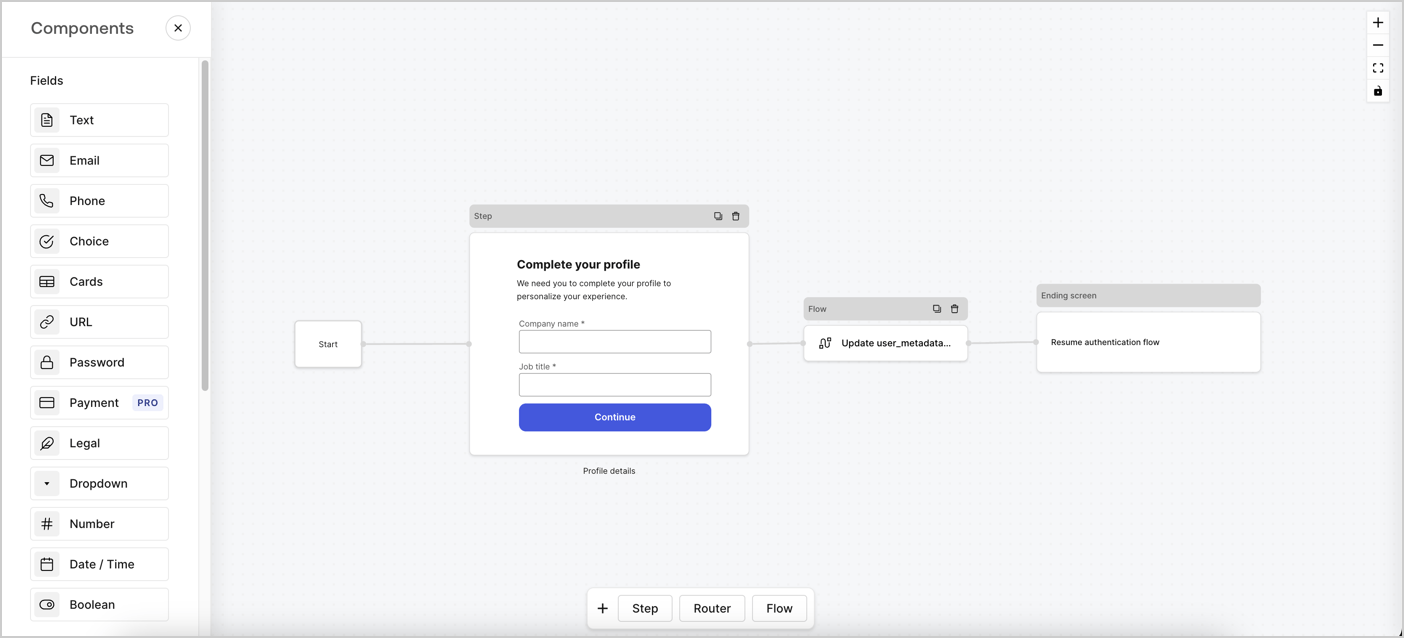
Forms for Actions allows you to create progressive profiling flows to decide when to prompt users to collect missing information, such as company name and job title, and store them as `user_metadata` attributes.
<Frame>
  <img src="https://mintcdn.com/docs-staging-feat-update-styling-docs-for-universal-compone/yE2UYUNfpy-Zo_3w/docs/images/cdy7uua7fh8z/xUx9YmnHvnAqL19JvNtNP/60dae88f893d4ebe8e3523421e960596/Progressive-profle-overview.png?fit=max&auto=format&n=yE2UYUNfpy-Zo_3w&q=85&s=7cb7c5768ef92e61958abc97a664c607" alt="Dashboard > Actions > Forms > Form" data-og-width="1404" width="1404" data-og-height="638" height="638" data-path="docs/images/cdy7uua7fh8z/xUx9YmnHvnAqL19JvNtNP/60dae88f893d4ebe8e3523421e960596/Progressive-profle-overview.png" data-optimize="true" data-opv="3" srcset="https://mintcdn.com/docs-staging-feat-update-styling-docs-for-universal-compone/yE2UYUNfpy-Zo_3w/docs/images/cdy7uua7fh8z/xUx9YmnHvnAqL19JvNtNP/60dae88f893d4ebe8e3523421e960596/Progressive-profle-overview.png?w=280&fit=max&auto=format&n=yE2UYUNfpy-Zo_3w&q=85&s=544a73d32a9a9f3c3b15d24be1650ad7 280w, https://mintcdn.com/docs-staging-feat-update-styling-docs-for-universal-compone/yE2UYUNfpy-Zo_3w/docs/images/cdy7uua7fh8z/xUx9YmnHvnAqL19JvNtNP/60dae88f893d4ebe8e3523421e960596/Progressive-profle-overview.png?w=560&fit=max&auto=format&n=yE2UYUNfpy-Zo_3w&q=85&s=eafc06f216346ffce9c2cc5ae433bf5f 560w, https://mintcdn.com/docs-staging-feat-update-styling-docs-for-universal-compone/yE2UYUNfpy-Zo_3w/docs/images/cdy7uua7fh8z/xUx9YmnHvnAqL19JvNtNP/60dae88f893d4ebe8e3523421e960596/Progressive-profle-overview.png?w=840&fit=max&auto=format&n=yE2UYUNfpy-Zo_3w&q=85&s=687b2c8d29d9cb2c651b61793d2d9167 840w, https://mintcdn.com/docs-staging-feat-update-styling-docs-for-universal-compone/yE2UYUNfpy-Zo_3w/docs/images/cdy7uua7fh8z/xUx9YmnHvnAqL19JvNtNP/60dae88f893d4ebe8e3523421e960596/Progressive-profle-overview.png?w=1100&fit=max&auto=format&n=yE2UYUNfpy-Zo_3w&q=85&s=acbf72f619b0fa45d2aac147c97b343e 1100w, https://mintcdn.com/docs-staging-feat-update-styling-docs-for-universal-compone/yE2UYUNfpy-Zo_3w/docs/images/cdy7uua7fh8z/xUx9YmnHvnAqL19JvNtNP/60dae88f893d4ebe8e3523421e960596/Progressive-profle-overview.png?w=1650&fit=max&auto=format&n=yE2UYUNfpy-Zo_3w&q=85&s=f4e915add470cd683fad16c10472825e 1650w, https://mintcdn.com/docs-staging-feat-update-styling-docs-for-universal-compone/yE2UYUNfpy-Zo_3w/docs/images/cdy7uua7fh8z/xUx9YmnHvnAqL19JvNtNP/60dae88f893d4ebe8e3523421e960596/Progressive-profle-overview.png?w=2500&fit=max&auto=format&n=yE2UYUNfpy-Zo_3w&q=85&s=7bc600514e8f01a568fbfa0ba532925e 2500w" />
</Frame>

The sections below outline how you can create a progressive profile form using nodes and flows, along with steps for adding your form to a [Post Login Action](/docs/customize/actions/explore-triggers/signup-and-login-triggers/login-trigger).

## Create a form from scratch

Follow these steps to create a form to gather information:

1. Open the Form editor by selecting **Auth0 Dashboard > Actions > Forms.**
2. Select **Create Form** > **Start from scratch**.

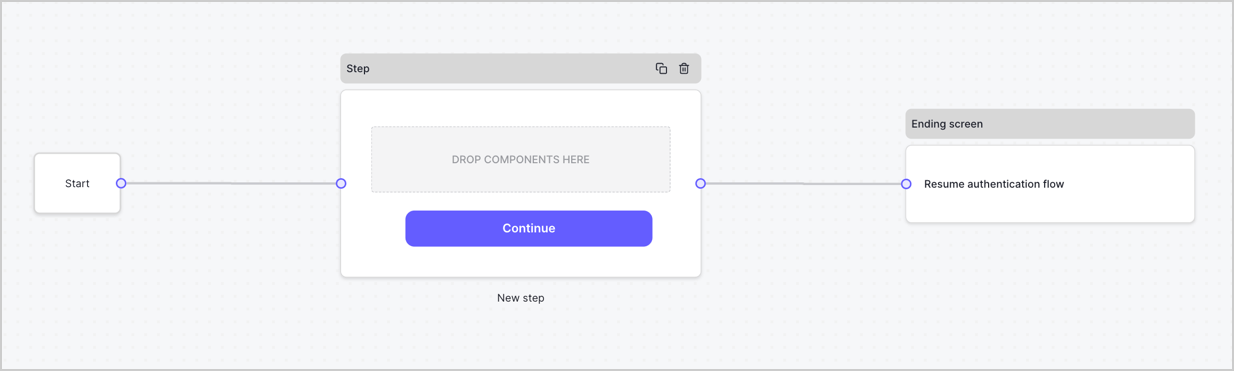
By default, a new form contains a Start node, a Step node, and an Ending screen node.
<Frame>
  <img src="https://mintcdn.com/docs-staging-feat-update-styling-docs-for-universal-compone/OirAsOnZ0fSqyxqR/docs/images/cdy7uua7fh8z/2TZ9jSjgEcARFpULI6hz4R/a4319a1bd482f2ee5cc23100fdb2f42c/New-form-Forms-for-action-use-case.png?fit=max&auto=format&n=OirAsOnZ0fSqyxqR&q=85&s=b1ff1cba6d937a0c9f05660a06595d58" alt="Dashboard > Forms > Use Cases > Form" data-og-width="1234" width="1234" data-og-height="371" height="371" data-path="docs/images/cdy7uua7fh8z/2TZ9jSjgEcARFpULI6hz4R/a4319a1bd482f2ee5cc23100fdb2f42c/New-form-Forms-for-action-use-case.png" data-optimize="true" data-opv="3" srcset="https://mintcdn.com/docs-staging-feat-update-styling-docs-for-universal-compone/OirAsOnZ0fSqyxqR/docs/images/cdy7uua7fh8z/2TZ9jSjgEcARFpULI6hz4R/a4319a1bd482f2ee5cc23100fdb2f42c/New-form-Forms-for-action-use-case.png?w=280&fit=max&auto=format&n=OirAsOnZ0fSqyxqR&q=85&s=5400ff41ee27d1cb9381bc8ef48fbbec 280w, https://mintcdn.com/docs-staging-feat-update-styling-docs-for-universal-compone/OirAsOnZ0fSqyxqR/docs/images/cdy7uua7fh8z/2TZ9jSjgEcARFpULI6hz4R/a4319a1bd482f2ee5cc23100fdb2f42c/New-form-Forms-for-action-use-case.png?w=560&fit=max&auto=format&n=OirAsOnZ0fSqyxqR&q=85&s=8ffc63f1181a631510b21a878876b99b 560w, https://mintcdn.com/docs-staging-feat-update-styling-docs-for-universal-compone/OirAsOnZ0fSqyxqR/docs/images/cdy7uua7fh8z/2TZ9jSjgEcARFpULI6hz4R/a4319a1bd482f2ee5cc23100fdb2f42c/New-form-Forms-for-action-use-case.png?w=840&fit=max&auto=format&n=OirAsOnZ0fSqyxqR&q=85&s=27e8f0b486e5fcd40151e37d0e38b01d 840w, https://mintcdn.com/docs-staging-feat-update-styling-docs-for-universal-compone/OirAsOnZ0fSqyxqR/docs/images/cdy7uua7fh8z/2TZ9jSjgEcARFpULI6hz4R/a4319a1bd482f2ee5cc23100fdb2f42c/New-form-Forms-for-action-use-case.png?w=1100&fit=max&auto=format&n=OirAsOnZ0fSqyxqR&q=85&s=981169e0711b29086c3fe7e32762340f 1100w, https://mintcdn.com/docs-staging-feat-update-styling-docs-for-universal-compone/OirAsOnZ0fSqyxqR/docs/images/cdy7uua7fh8z/2TZ9jSjgEcARFpULI6hz4R/a4319a1bd482f2ee5cc23100fdb2f42c/New-form-Forms-for-action-use-case.png?w=1650&fit=max&auto=format&n=OirAsOnZ0fSqyxqR&q=85&s=6904752afb572187008f1cf934c796a5 1650w, https://mintcdn.com/docs-staging-feat-update-styling-docs-for-universal-compone/OirAsOnZ0fSqyxqR/docs/images/cdy7uua7fh8z/2TZ9jSjgEcARFpULI6hz4R/a4319a1bd482f2ee5cc23100fdb2f42c/New-form-Forms-for-action-use-case.png?w=2500&fit=max&auto=format&n=OirAsOnZ0fSqyxqR&q=85&s=736084bf82b392642aca02c3c5c1f1b9 2500w" />
</Frame>

### Configure the Step node

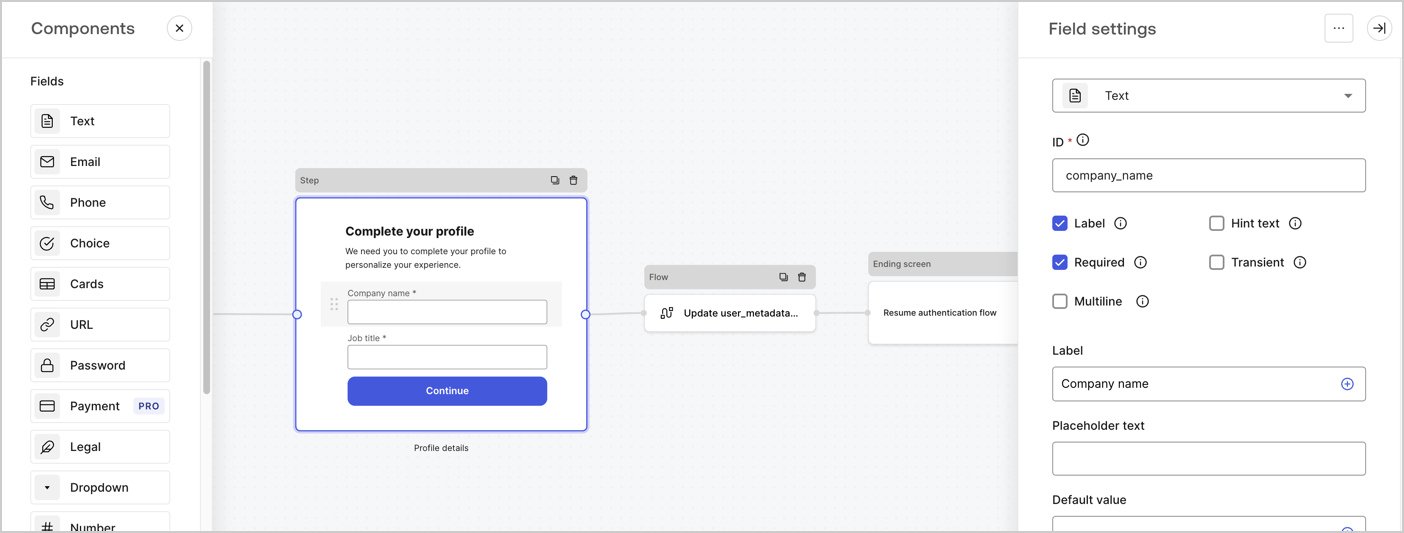
The Step node is the graphical interface visible to users. Add [Fields](/docs/customize/forms/nodes-and-components) to the Step node to collect the user's company name and job title values by following these steps:

1. Drag a **Rich text** field from the **Components menu** into the **Step** node.

   * **Rich text**: Enter a custom message.

     * **Example**: `Complete your profile! We need you to complete your profile to personalize your experience.`
   * Select **Save**.
2. Drag a **Text** field into the **Step** node.

   * **ID**: Enter `company_name`.
   * **Label**: Enable the checkbox.
   * **Label**: Enter `Company name`.
   * **Required**: Enable the checkbox.
   * Select **Save**.
3. Drag a **Text** field into the **Step** node.

   1. **ID**: Enter `job_title`.
   2. **Label**: Enter `Job title`.
   3. **Label**: Enable the checkbox.
   4. **Required**: Enable the checkbox.
   5. Select **Save**.
4. Select **Publish** to save.
<Frame>
  <img src="https://mintcdn.com/docs-staging-feat-update-styling-docs-for-universal-compone/CHwbi8BEn2axWgua/docs/images/cdy7uua7fh8z/6H1lRzwKyYioQyQJ9MtIoM/aa248e92fc028a68a5b92ff361a11644/progressive-profile-step.png?fit=max&auto=format&n=CHwbi8BEn2axWgua&q=85&s=8cc35674788d68f3e01c8799d799f404" alt="Dashboard > Actions > Forms > Form > Step node" data-og-width="1404" width="1404" data-og-height="533" height="533" data-path="docs/images/cdy7uua7fh8z/6H1lRzwKyYioQyQJ9MtIoM/aa248e92fc028a68a5b92ff361a11644/progressive-profile-step.png" data-optimize="true" data-opv="3" srcset="https://mintcdn.com/docs-staging-feat-update-styling-docs-for-universal-compone/CHwbi8BEn2axWgua/docs/images/cdy7uua7fh8z/6H1lRzwKyYioQyQJ9MtIoM/aa248e92fc028a68a5b92ff361a11644/progressive-profile-step.png?w=280&fit=max&auto=format&n=CHwbi8BEn2axWgua&q=85&s=408b60d22c6535e80dace853bb497be2 280w, https://mintcdn.com/docs-staging-feat-update-styling-docs-for-universal-compone/CHwbi8BEn2axWgua/docs/images/cdy7uua7fh8z/6H1lRzwKyYioQyQJ9MtIoM/aa248e92fc028a68a5b92ff361a11644/progressive-profile-step.png?w=560&fit=max&auto=format&n=CHwbi8BEn2axWgua&q=85&s=a81c0cff2051efc72e13b5d517806a49 560w, https://mintcdn.com/docs-staging-feat-update-styling-docs-for-universal-compone/CHwbi8BEn2axWgua/docs/images/cdy7uua7fh8z/6H1lRzwKyYioQyQJ9MtIoM/aa248e92fc028a68a5b92ff361a11644/progressive-profile-step.png?w=840&fit=max&auto=format&n=CHwbi8BEn2axWgua&q=85&s=c30409ae2f929e5caa9ac528aa88b937 840w, https://mintcdn.com/docs-staging-feat-update-styling-docs-for-universal-compone/CHwbi8BEn2axWgua/docs/images/cdy7uua7fh8z/6H1lRzwKyYioQyQJ9MtIoM/aa248e92fc028a68a5b92ff361a11644/progressive-profile-step.png?w=1100&fit=max&auto=format&n=CHwbi8BEn2axWgua&q=85&s=8bad9f46653d991b390b65eacc7862be 1100w, https://mintcdn.com/docs-staging-feat-update-styling-docs-for-universal-compone/CHwbi8BEn2axWgua/docs/images/cdy7uua7fh8z/6H1lRzwKyYioQyQJ9MtIoM/aa248e92fc028a68a5b92ff361a11644/progressive-profile-step.png?w=1650&fit=max&auto=format&n=CHwbi8BEn2axWgua&q=85&s=8aab7033e75d7102180da8c53d48c064 1650w, https://mintcdn.com/docs-staging-feat-update-styling-docs-for-universal-compone/CHwbi8BEn2axWgua/docs/images/cdy7uua7fh8z/6H1lRzwKyYioQyQJ9MtIoM/aa248e92fc028a68a5b92ff361a11644/progressive-profile-step.png?w=2500&fit=max&auto=format&n=CHwbi8BEn2axWgua&q=85&s=d4606047697ae1fcbb8572839e3193a0 2500w" />
</Frame>

### Configure the flow node

Add a **Flow** node after the **Step** node to update the `user_metadata` and resume the authentication flow by following these steps:

1. Select **Flow** from the bottom of the Form editor.
2. Remove the existing link between the **Step** and **Ending Screen** nodes.
3. Select the new **Flow** > **Click to add a flow** > **Create a new flow.**

   * Enter `Update user_metadata` in the **Name** field.
   * Select **Create**.
   * Select **Save**.
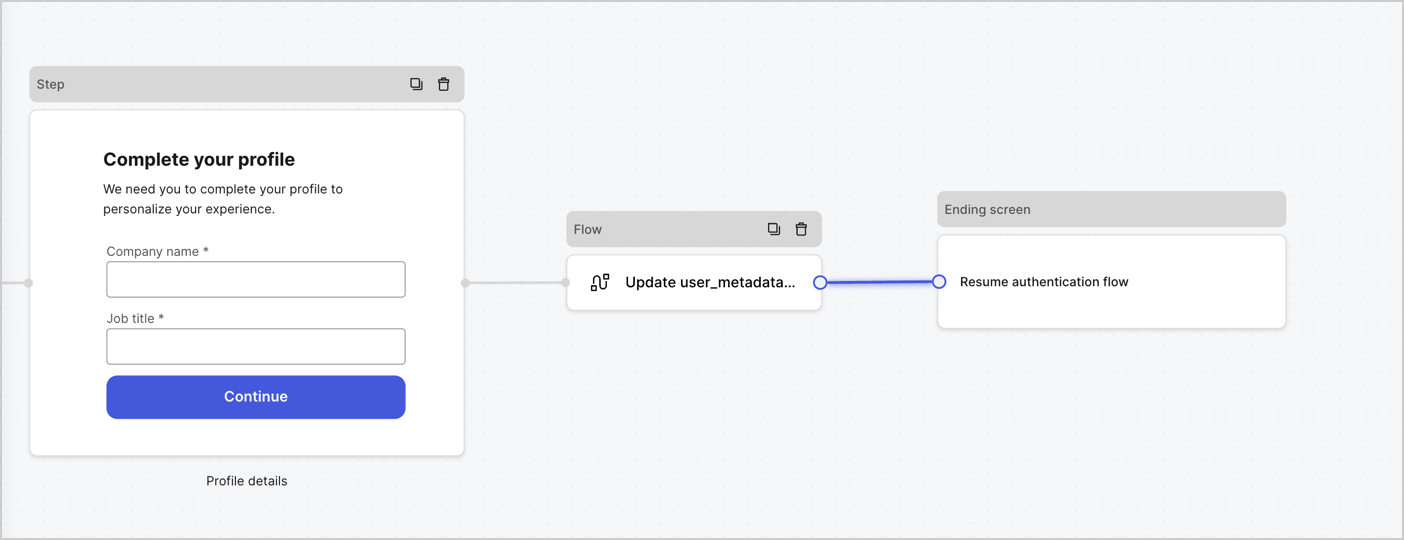
4. Link the **Flow** node to the **Step** and **Ending Screen** nodes as pictured below.
5. Select **Publish** to save.
<Frame>
  <img src="https://mintcdn.com/docs-staging-feat-update-styling-docs-for-universal-compone/MQMAGwjDlzN1zbBM/docs/images/cdy7uua7fh8z/5C91DaWn4LGtJT9BF87ssu/095171d0c452a287c44bfde12fd6d13f/link-nodes.png?fit=max&auto=format&n=MQMAGwjDlzN1zbBM&q=85&s=847fdb63873649b5a28154966b9f1791" alt="Dashboard > Actions > Forms > Form" data-og-width="1404" width="1404" data-og-height="540" height="540" data-path="docs/images/cdy7uua7fh8z/5C91DaWn4LGtJT9BF87ssu/095171d0c452a287c44bfde12fd6d13f/link-nodes.png" data-optimize="true" data-opv="3" srcset="https://mintcdn.com/docs-staging-feat-update-styling-docs-for-universal-compone/MQMAGwjDlzN1zbBM/docs/images/cdy7uua7fh8z/5C91DaWn4LGtJT9BF87ssu/095171d0c452a287c44bfde12fd6d13f/link-nodes.png?w=280&fit=max&auto=format&n=MQMAGwjDlzN1zbBM&q=85&s=4476a1e49059fd4d944fde75c1892089 280w, https://mintcdn.com/docs-staging-feat-update-styling-docs-for-universal-compone/MQMAGwjDlzN1zbBM/docs/images/cdy7uua7fh8z/5C91DaWn4LGtJT9BF87ssu/095171d0c452a287c44bfde12fd6d13f/link-nodes.png?w=560&fit=max&auto=format&n=MQMAGwjDlzN1zbBM&q=85&s=feed015e54afeedb6d8e27636887b52d 560w, https://mintcdn.com/docs-staging-feat-update-styling-docs-for-universal-compone/MQMAGwjDlzN1zbBM/docs/images/cdy7uua7fh8z/5C91DaWn4LGtJT9BF87ssu/095171d0c452a287c44bfde12fd6d13f/link-nodes.png?w=840&fit=max&auto=format&n=MQMAGwjDlzN1zbBM&q=85&s=f5987fc26fee531a8c9053691bab906d 840w, https://mintcdn.com/docs-staging-feat-update-styling-docs-for-universal-compone/MQMAGwjDlzN1zbBM/docs/images/cdy7uua7fh8z/5C91DaWn4LGtJT9BF87ssu/095171d0c452a287c44bfde12fd6d13f/link-nodes.png?w=1100&fit=max&auto=format&n=MQMAGwjDlzN1zbBM&q=85&s=27c5623f6bd2cc143c64e2f33baa33ad 1100w, https://mintcdn.com/docs-staging-feat-update-styling-docs-for-universal-compone/MQMAGwjDlzN1zbBM/docs/images/cdy7uua7fh8z/5C91DaWn4LGtJT9BF87ssu/095171d0c452a287c44bfde12fd6d13f/link-nodes.png?w=1650&fit=max&auto=format&n=MQMAGwjDlzN1zbBM&q=85&s=c0147a9dc12b038ebedd74ad9bea8dba 1650w, https://mintcdn.com/docs-staging-feat-update-styling-docs-for-universal-compone/MQMAGwjDlzN1zbBM/docs/images/cdy7uua7fh8z/5C91DaWn4LGtJT9BF87ssu/095171d0c452a287c44bfde12fd6d13f/link-nodes.png?w=2500&fit=max&auto=format&n=MQMAGwjDlzN1zbBM&q=85&s=4eae3c4e027993ec3a27e1052db70a2f 2500w" />
</Frame>

Add an Auth0 Update user action to the flow by following these steps:

1. Select the **Update user\_metadata** flow, then select the **Edit Flow** to open the Flow editor in a new tab.
2. Below the **Start** action, select the **+** icon to add an **Update user** action. Complete the fields below, then select **Save** to continue.

   * **Connection**: Select from the dropdown the Vault connection to your M2M application.

   * **User ID**: Enter `{{context.user.user_id}}`.

   * **Body**: Copy and paste the following code to update the user\_metadata with `job_title` and `company_name` properties.

     ```json lines theme={null}
     {
        "user_metadata": {
           "job_title": "{{fields.job_title}}",
           "company_name": "{{fields.company_name}}"
        }
     }
     ```

   * Select **Save**.
3. Select **Publish** to save.

<Frame>
  <img src="https://mintcdn.com/docs-staging-feat-update-styling-docs-for-universal-compone/qsIqsT0TnQQH4J6U/docs/images/cdy7uua7fh8z/65Jx4W5oIZJyyvA8z4HqIx/0661b1a8ca6361c54fc4fef07ba59f0b/update-user.png?fit=max&auto=format&n=qsIqsT0TnQQH4J6U&q=85&s=d95a9f83d8f9989b65b838878c013b05" alt="Dashboard > Actions > Forms > Flows" data-og-width="1404" width="1404" data-og-height="244" height="244" data-path="docs/images/cdy7uua7fh8z/65Jx4W5oIZJyyvA8z4HqIx/0661b1a8ca6361c54fc4fef07ba59f0b/update-user.png" data-optimize="true" data-opv="3" srcset="https://mintcdn.com/docs-staging-feat-update-styling-docs-for-universal-compone/qsIqsT0TnQQH4J6U/docs/images/cdy7uua7fh8z/65Jx4W5oIZJyyvA8z4HqIx/0661b1a8ca6361c54fc4fef07ba59f0b/update-user.png?w=280&fit=max&auto=format&n=qsIqsT0TnQQH4J6U&q=85&s=6cf932608712a7d134537f9517dfb023 280w, https://mintcdn.com/docs-staging-feat-update-styling-docs-for-universal-compone/qsIqsT0TnQQH4J6U/docs/images/cdy7uua7fh8z/65Jx4W5oIZJyyvA8z4HqIx/0661b1a8ca6361c54fc4fef07ba59f0b/update-user.png?w=560&fit=max&auto=format&n=qsIqsT0TnQQH4J6U&q=85&s=45c672012e361c1a14880d22c9801619 560w, https://mintcdn.com/docs-staging-feat-update-styling-docs-for-universal-compone/qsIqsT0TnQQH4J6U/docs/images/cdy7uua7fh8z/65Jx4W5oIZJyyvA8z4HqIx/0661b1a8ca6361c54fc4fef07ba59f0b/update-user.png?w=840&fit=max&auto=format&n=qsIqsT0TnQQH4J6U&q=85&s=979589109f188f76c633c7e3842b813a 840w, https://mintcdn.com/docs-staging-feat-update-styling-docs-for-universal-compone/qsIqsT0TnQQH4J6U/docs/images/cdy7uua7fh8z/65Jx4W5oIZJyyvA8z4HqIx/0661b1a8ca6361c54fc4fef07ba59f0b/update-user.png?w=1100&fit=max&auto=format&n=qsIqsT0TnQQH4J6U&q=85&s=aaa256fb1374bd1e721f61f4b1caef24 1100w, https://mintcdn.com/docs-staging-feat-update-styling-docs-for-universal-compone/qsIqsT0TnQQH4J6U/docs/images/cdy7uua7fh8z/65Jx4W5oIZJyyvA8z4HqIx/0661b1a8ca6361c54fc4fef07ba59f0b/update-user.png?w=1650&fit=max&auto=format&n=qsIqsT0TnQQH4J6U&q=85&s=7e35ba2936f2b8a056e2f8619de875c1 1650w, https://mintcdn.com/docs-staging-feat-update-styling-docs-for-universal-compone/qsIqsT0TnQQH4J6U/docs/images/cdy7uua7fh8z/65Jx4W5oIZJyyvA8z4HqIx/0661b1a8ca6361c54fc4fef07ba59f0b/update-user.png?w=2500&fit=max&auto=format&n=qsIqsT0TnQQH4J6U&q=85&s=c2e80d971199a513165d113913f168f9 2500w" />
</Frame>

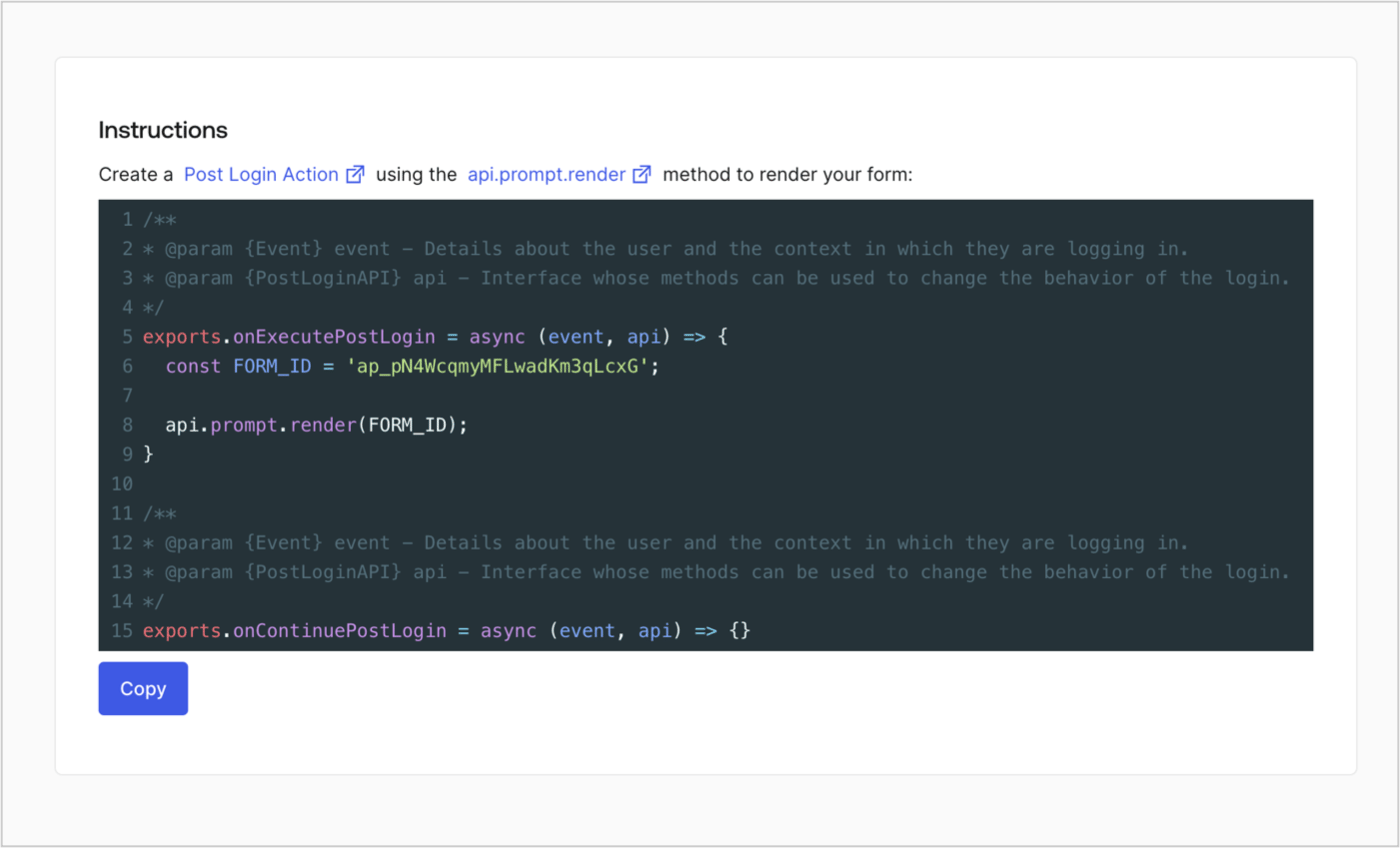
### Retrieve the form render code

Retrieve the form render code to visually render the form with a custom Post Login Action by following these steps:

* From the Form editor, select **`<> Render`**.
* Select **Copy**.
<Frame>
  <img src="https://mintcdn.com/docs-staging-feat-update-styling-docs-for-universal-compone/KkAWLZH4xeckXiJ7/docs/images/cdy7uua7fh8z/2EIUzc539sq9lwoTKbjoJv/496a864c0fc44a782c9cadca119dbfb0/embed.png?fit=max&auto=format&n=KkAWLZH4xeckXiJ7&q=85&s=304b17585c35f14c8a7121aebbe22288" alt="Dashboard > Actions > Forms > Form > Embed" data-og-width="1400" width="1400" data-og-height="848" height="848" data-path="docs/images/cdy7uua7fh8z/2EIUzc539sq9lwoTKbjoJv/496a864c0fc44a782c9cadca119dbfb0/embed.png" data-optimize="true" data-opv="3" srcset="https://mintcdn.com/docs-staging-feat-update-styling-docs-for-universal-compone/KkAWLZH4xeckXiJ7/docs/images/cdy7uua7fh8z/2EIUzc539sq9lwoTKbjoJv/496a864c0fc44a782c9cadca119dbfb0/embed.png?w=280&fit=max&auto=format&n=KkAWLZH4xeckXiJ7&q=85&s=3b684aaaea654b69911330409b8119f2 280w, https://mintcdn.com/docs-staging-feat-update-styling-docs-for-universal-compone/KkAWLZH4xeckXiJ7/docs/images/cdy7uua7fh8z/2EIUzc539sq9lwoTKbjoJv/496a864c0fc44a782c9cadca119dbfb0/embed.png?w=560&fit=max&auto=format&n=KkAWLZH4xeckXiJ7&q=85&s=f9a3f9f89d1f9298dff72b397325b429 560w, https://mintcdn.com/docs-staging-feat-update-styling-docs-for-universal-compone/KkAWLZH4xeckXiJ7/docs/images/cdy7uua7fh8z/2EIUzc539sq9lwoTKbjoJv/496a864c0fc44a782c9cadca119dbfb0/embed.png?w=840&fit=max&auto=format&n=KkAWLZH4xeckXiJ7&q=85&s=adaf0fdd316c72506b22e16fdb3727f5 840w, https://mintcdn.com/docs-staging-feat-update-styling-docs-for-universal-compone/KkAWLZH4xeckXiJ7/docs/images/cdy7uua7fh8z/2EIUzc539sq9lwoTKbjoJv/496a864c0fc44a782c9cadca119dbfb0/embed.png?w=1100&fit=max&auto=format&n=KkAWLZH4xeckXiJ7&q=85&s=2d5573961364f435bee861ab7fb992d6 1100w, https://mintcdn.com/docs-staging-feat-update-styling-docs-for-universal-compone/KkAWLZH4xeckXiJ7/docs/images/cdy7uua7fh8z/2EIUzc539sq9lwoTKbjoJv/496a864c0fc44a782c9cadca119dbfb0/embed.png?w=1650&fit=max&auto=format&n=KkAWLZH4xeckXiJ7&q=85&s=d09417bcab1a7cdc3368b878cd367bc8 1650w, https://mintcdn.com/docs-staging-feat-update-styling-docs-for-universal-compone/KkAWLZH4xeckXiJ7/docs/images/cdy7uua7fh8z/2EIUzc539sq9lwoTKbjoJv/496a864c0fc44a782c9cadca119dbfb0/embed.png?w=2500&fit=max&auto=format&n=KkAWLZH4xeckXiJ7&q=85&s=dea2998da293c00a821b651fef54bb16 2500w" />
</Frame>

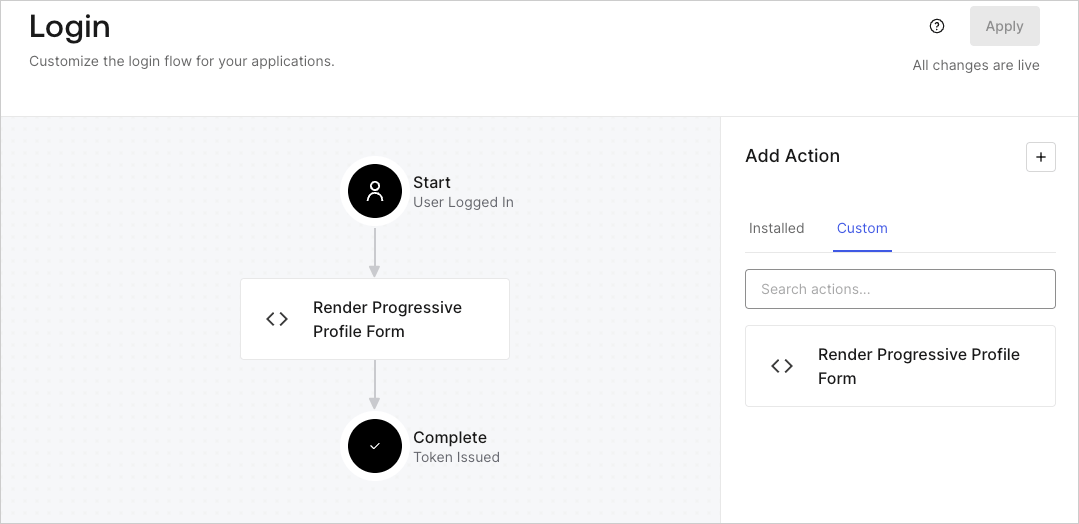
## Create a Post Login Action

Create a post-login Action to render your form by following these steps:

1. Navigate to **Auth0 Dashboard > Actions > Flows > Login.**
2. Select the **+** icon and select **Build from scratch**:

   * **Name**: Enter `Render Progressive Profile Form`.
   * **Trigger**: Select `Login / Post Login`.
   * **Runtime**: Select the recommended version.
3. Select **Create**.

To configure the post-login Action:

1. Delete the existing code from the Code editor.
2. Paste the form embed code into the Code editor.
3. Edit the code to define the conditional logic that will render the form.

   ```javascript lines theme={null}
   /**
   * @param {Event} event - Details about the user and the context in which they are logging in.
   * @param {PostLoginAPI} api - Interface whose methods can be used to change the behavior of the login.
   */
   exports.onExecutePostLogin = async (event, api) => {
     const FORM_ID = 'REPLACE_WITH_YOUR_FORM_ID';

     if (
       event.stats.logins_count > 2 &&
       !event.user.user_metadata.company_name &&
       !event.user.user_metadata.job_title
     ) {
       api.prompt.render(FORM_ID);
     }
   }

   exports.onContinuePostLogin = async (event, api) => { }
   ```

   <Callout icon="file-lines" color="#0EA5E9" iconType="regular">
     The example code above will render the form when a user has a login count > 2 and is missing the user metadata company\_name and job\_title properties.
   </Callout>
4. Select **Deploy.**
5. Drag and Drop the **Render Progressive Profile Form** Action to the **Login** flow.
   <Frame>
     <img src="https://mintcdn.com/docs-staging-feat-update-styling-docs-for-universal-compone/cH_qS-g6NsYFebV_/docs/images/cdy7uua7fh8z/1QjjZdpTqTxx012UDN4xk9/99fba5ef4068a5688f1762eea7f42976/renderprogessiveprofile.png?fit=max&auto=format&n=cH_qS-g6NsYFebV_&q=85&s=6b59ce2ec75758ac26fdf099eb499496" alt="Dashboard > Forms > Use Cases Progressive Profile Login Action" data-og-width="1079" width="1079" data-og-height="524" height="524" data-path="docs/images/cdy7uua7fh8z/1QjjZdpTqTxx012UDN4xk9/99fba5ef4068a5688f1762eea7f42976/renderprogessiveprofile.png" data-optimize="true" data-opv="3" srcset="https://mintcdn.com/docs-staging-feat-update-styling-docs-for-universal-compone/cH_qS-g6NsYFebV_/docs/images/cdy7uua7fh8z/1QjjZdpTqTxx012UDN4xk9/99fba5ef4068a5688f1762eea7f42976/renderprogessiveprofile.png?w=280&fit=max&auto=format&n=cH_qS-g6NsYFebV_&q=85&s=b309fcd9bf5022ea3ee86eababb605de 280w, https://mintcdn.com/docs-staging-feat-update-styling-docs-for-universal-compone/cH_qS-g6NsYFebV_/docs/images/cdy7uua7fh8z/1QjjZdpTqTxx012UDN4xk9/99fba5ef4068a5688f1762eea7f42976/renderprogessiveprofile.png?w=560&fit=max&auto=format&n=cH_qS-g6NsYFebV_&q=85&s=89e31a26c7ee0c8ff0f8de4ad3947472 560w, https://mintcdn.com/docs-staging-feat-update-styling-docs-for-universal-compone/cH_qS-g6NsYFebV_/docs/images/cdy7uua7fh8z/1QjjZdpTqTxx012UDN4xk9/99fba5ef4068a5688f1762eea7f42976/renderprogessiveprofile.png?w=840&fit=max&auto=format&n=cH_qS-g6NsYFebV_&q=85&s=be5f82c8a64cf3a29d7d4e62d46334ee 840w, https://mintcdn.com/docs-staging-feat-update-styling-docs-for-universal-compone/cH_qS-g6NsYFebV_/docs/images/cdy7uua7fh8z/1QjjZdpTqTxx012UDN4xk9/99fba5ef4068a5688f1762eea7f42976/renderprogessiveprofile.png?w=1100&fit=max&auto=format&n=cH_qS-g6NsYFebV_&q=85&s=fafb8e31fc41e453812fb3f5b127ec03 1100w, https://mintcdn.com/docs-staging-feat-update-styling-docs-for-universal-compone/cH_qS-g6NsYFebV_/docs/images/cdy7uua7fh8z/1QjjZdpTqTxx012UDN4xk9/99fba5ef4068a5688f1762eea7f42976/renderprogessiveprofile.png?w=1650&fit=max&auto=format&n=cH_qS-g6NsYFebV_&q=85&s=c3c5aa3220012324676e88bb92c451a5 1650w, https://mintcdn.com/docs-staging-feat-update-styling-docs-for-universal-compone/cH_qS-g6NsYFebV_/docs/images/cdy7uua7fh8z/1QjjZdpTqTxx012UDN4xk9/99fba5ef4068a5688f1762eea7f42976/renderprogessiveprofile.png?w=2500&fit=max&auto=format&n=cH_qS-g6NsYFebV_&q=85&s=a823e9312aef9bc5933aa26faae80072 2500w" />
   </Frame>
6. Select **Apply**.

### Test implementation

Test the implementation by following these steps:

1. Log in with an existing user whose login count is greater than 2 and their `user_metadata` attributes `company_name` and `job_title` have no values.
2. The post-login action in the Login flow will render the form and prompt for the information.
3. Select **Auth0 Dashboard > User Management > Users,** locate the user and verify that the `user_metadata` attributes `company_name` and `job_title` contain information.
